 ZapVideo Extractor
ZapVideo Extractor - Help & Support
Step 1: Install the Companion Software
To enable direct video extraction and downloading, install the ZapVideo Companion Software on your PC.
Steps to install:
- Download the companion software from the official website.
- Run the installer and follow the setup instructions.
- Ensure the software is running in the background for seamless integration.
Step 2: How to Use ZapVideo Extractor
Follow these steps to extract video and audio details:
- Install the ZapVideo Extractor extension from the Chrome Web Store.
- Open YouTube and play a video.
- Click the ZapVideo Extractor icon in the Chrome toolbar.
- It will extract the video details and send them to your PC for processing.
Step 3: How It Works
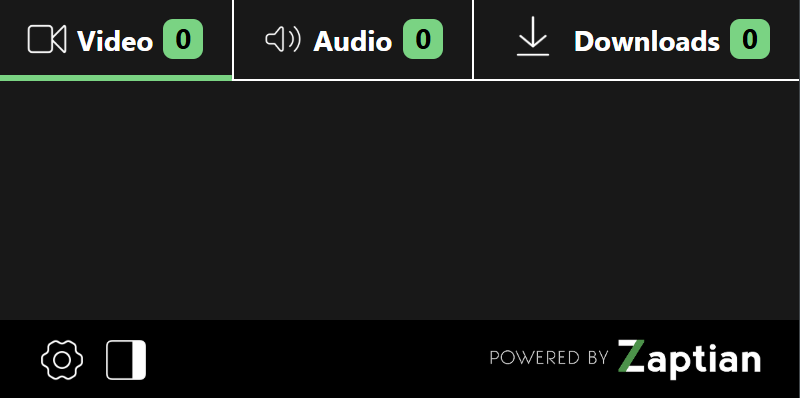
- Open YouTube: Navigate to the YouTube video you want to extract.
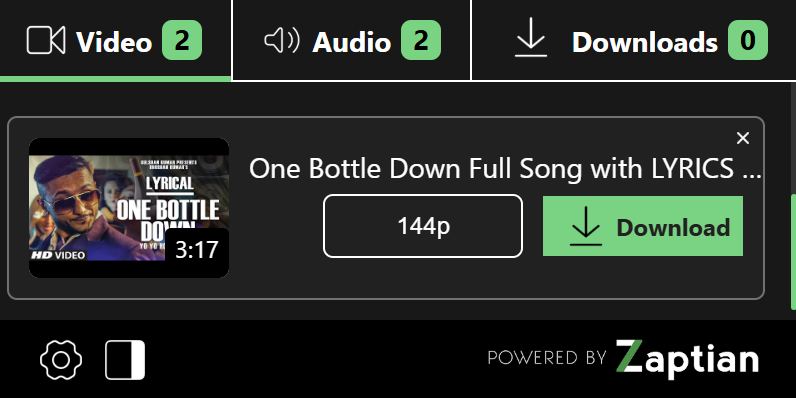
- Click the ZapVideo Extension Icon: The popup will display the video details (title, thumbnail, and resolution).
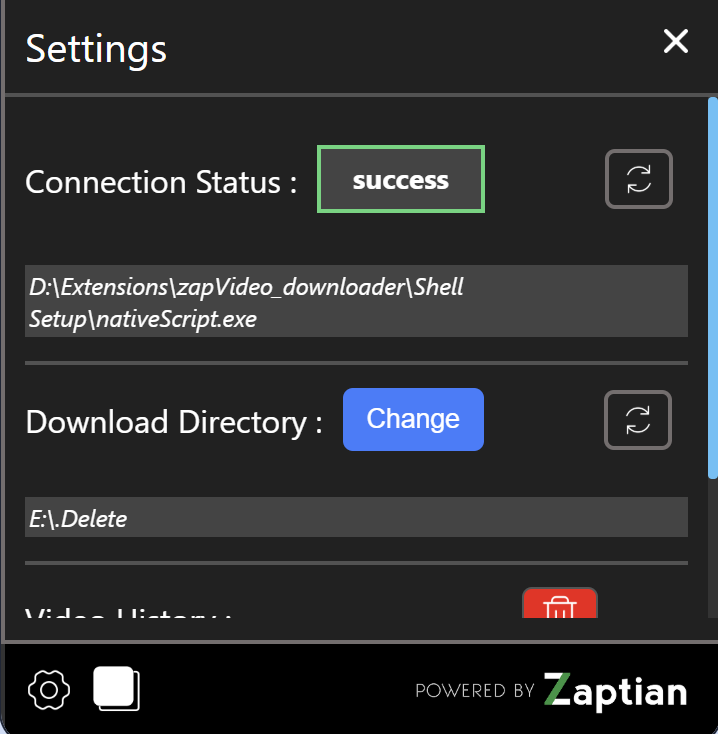
- Check Connection Status: Click the settings icon ⚙️. Ensure the "Connection Status" shows Success.
- Start Extraction: If the connection is successful, press the "Extract Video" button.
- Progress Status: A progress bar will indicate the extraction process. Once completed, the file will be saved to your PC.
Step 4: How to Progress :
- Step 1: Open the ZapVideo Extractor extension while watching a YouTube video.
- Step 2: The extension will detect the video and display its details (title, thumbnail, and resolution) within 20 seconds.
- Step 3: Choose your preferred resolution for extraction from the available options.
- Step 4: Click the "Extract Video" button to begin processing.
- Step 5: The video will be downloaded to your PC via native messaging.